
Overview
A Pass Template (Template model) defines the structural geometry, visual branding, field layout zones, barcode symbology, and location-based relevancy rules shared by all passes issued under a program. Passinstance compiles a single canonical template configuration into both native Apple Wallet (.pkpass) archives and Google Wallet (Class / Object) cloud definitions.
Open any template in the Dashboard and enter Edit Template to configure design and wallet rules side by side with a live Apple Wallet and Google Wallet preview, or manage templates programmatically via /api/v1/templates.
System Architecture: Template Serialization Pipeline
1. Creating a Template: The 4-Step Wizard
When creating a new template in the Dashboard (Templates -> + New Template), the Template Creation Wizard guides operators through a 4-step workflow:
-
1
Step 1: Details: Enter the template
name(e.g.,"Artisan Coffee Club"),organizationName(rendered in the wallet header), and an accessibledescription. Operators can optionally import an existing.passdesign,.plist, or.pkpassarchive. -
2
Step 2: Pass Type: Choose one of the 6 canonical pass kinds (
PassKind:storeCard,coupon,eventTicket,boardingPass,generic, orposterGeneric). -
3
Step 3: Wallet Apps: Select target wallet ecosystems (
IWalletApps:appleWalletEnabledandgooglePayEnabled). -
4
Step 4: Completion & Certificate: Assign an Apple Pass Type ID signing certificate (
uploadCertificateor select an existing active certificate from workspace settings).
Mandatory Icon Requirement
In accordance with Apple PassKit specifications, every template requires an icon asset (normalizeWizardImage(seedImages?.icon)). If no icon is provided or imported, the creation wizard will throw: 'Template icon is required' Passinstance provides default high-resolution seed icons for each pass kind if a custom icon is not immediately uploaded.
Initial Status Lifecycle
Newly created templates are initialized directly into status: template status.PUBLISHED (with rowKind: PRODUCTION) in the database (createTemplatePayload.ts:130). This allows immediate pass issuance and API testing. Subsequent edits in the Visual Editor spawn an isolated DRAFT row (rowKind: DRAFT), ensuring live passes remain stable until changes are explicitly published.
2. Template Editor Overview: Layout & Navigation
The Visual Editor interface consists of four primary functional areas:
The 8 Sidebar Sections (sidebarSections.ts)
-
1
Pass setup: Template identity, name, organization name, pass kind selection, and Preferred Style Scheme. -
2
Design & content: Front layout field zones, Back content, Brand colors with contrast verification, Wallet images, Featured actions, and Languages & translations. -
3
Wallet actions: Value added opportunities, Actions button, Wallet links, Sharing controls (sharingProhibited), and Linked app banners (associatedStoreIdentifiers). -
4
Validation & access: Primary barcode symbology, Watch fallback barcodes, dynamic security animation, and manual entry alternative text. -
5
Engagement & messaging: Welcome notification, Expiry & validity rules, Relevant dates, Location geofencing, and iBeacon proximity triggers. -
6
Program rules: Loyalty program mechanic assignment (e.g., Points & Tiers, Stamp Card, Cashback). -
7
Integrations & automation: Custom attributes schema definition and Apple Semantic Tags. -
8
Template settings: Guided tour (PassTour), external identifier validation regex, and certificate bindings.
Pass-Specific Tabs: When configuring a boardingPass, the sidebar dynamically exposes an Airline & Transit Services tab (transitType, flight numbers, airport codes). When configuring an eventTicket, it exposes an Event Guide tab (venue maps, upcoming events, and companion URLs).
The CommandBar
The top floating CommandBar provides:
-
Draft vs. Live Toggle: Switch between viewing the active published card and the working draft in the simulator.
-
Platform Switcher: Toggle the simulator between Apple Wallet and Google Wallet.
-
Autosave & Issues Drawer: Displays real-time schema validation errors (such as contrast warnings or missing fields).
-
Publish Button: Launches the publication modal to promote drafts to live passes.
3. Pass Kinds & Layout Limits (maxFieldsConfig.ts)
Each pass kind serves distinct operational use cases and enforces strict field limits governed by Apple PassKit geometry rules:
Pass Kind (PassKind) | Primary Use Case | Header Fields | Primary Fields | Secondary Fields | Auxiliary Fields | Back Fields | Additional Info |
|---|---|---|---|---|---|---|---|
storeCard | Retail loyalty, gift cards, prepaid cards | Max 3 | Max 1 | Max 4 | Max 4 | Unlimited | Max 50 |
coupon | Discounts, vouchers, promotional offers | Max 3 | Max 1 | Max 3 | 0 (Forbidden) | Unlimited | Max 50 |
eventTicket | Concerts, sports matches, conferences | Max 3 | Max 1 | Max 4 | Max 4 | Unlimited | Max 50 |
boardingPass | Flights, trains, buses, ferries | Max 3 | Max 2 (Dep/Arr) | Max 4 | Max 5 | Unlimited | Max 50 |
generic | Membership IDs, gym passes, access badges | Max 3 | Max 1 | Max 4 | Max 4 | Unlimited | Max 50 |
posterGeneric | High-impact modern digital badges | Max 1 | Max 4 | 0 | Max 2 (Footer) | Unlimited | Max 50 |
The Square Barcode Invariant
Important: On
generic,coupon, andstoreCardtemplates, if a square 2D barcode format is selected (PKBarcodeFormatQRorPKBarcodeFormatAztec), Apple PassKit limits the total combined number of Secondary + Auxiliary fields to a maximum of 4. Exceeding 4 combined fields causes Apple Wallet to truncate or hide the lower field row.
Back Fields & Additional Info Fields
-
Back Fields (
BACK): Rendered on the reverse side of Apple Wallet passes (tapped via the(i)or...menu). They support long multiline text, clickable web links (<a href="...">), phone numbers (tel:), email addresses (mailto:), and automated data detectors (dataDetectorTypes). -
Additional Info Fields (
ADDITIONALINFO): Introduced in iOS 18+ for event tickets and boarding passes to render companion venue details, parking instructions, entry gate guidelines, and event schedules below the primary pass fold.
4. Image Sizes Reference & Retina Variants {#image-sizes-reference}
Passinstance manages 13 distinct image asset slots. When you upload a high-resolution source image, the asset pipeline automatically downscales and packages @1x, @2x, and @3x retina variants for Apple Wallet while hosting public CDN URLs required by Google Wallet:
| Asset Slot Key | Target Platform | @1x Dimensions | @2x Dimensions | @3x Dimensions | Aspect Ratio / File Rules | Purpose & Layout Placement |
|---|---|---|---|---|---|---|
icon | Apple Wallet | 38 x 38 px | 76 x 76 px | 114 x 114 px | 1:1 square, PNG | Mandatory. Push notifications & lock-screen icon |
logo | Apple Wallet | 160 x 50 px | 320 x 100 px | 480 x 150 px | Max canvas, PNG | Top-left brand mark next to logoText |
primaryLogo | Unified / Fallback | 160 x 50 px | 320 x 100 px | 480 x 150 px | Max canvas, PNG | Canonical brand mark inherited across wallet targets |
strip | Apple (storeCard, coupon) | 375 x 123 px | 750 x 246 px | 1125 x 369 px | ~3.05:1 ratio, PNG | Full-bleed horizontal banner behind/above primary fields |
strip (eventTicket) | Apple (eventTicket < iOS 18) | 375 x 98 px | 750 x 196 px | 1125 x 294 px | ~3.83:1 ratio, PNG | Horizontal hero image for event passes |
background | Apple (eventTicket, generic) | 180 x 220 px | 360 x 440 px | 540 x 660 px | ~0.82:1 ratio, PNG | Full-card blurred background texture |
thumbnail | Apple (generic, membership) | 90 x 90 px | 180 x 180 px | 270 x 270 px | 1:1 (or 2:3 to 3:2), PNG | Square portrait photo ID or product badge on card right |
footer | Apple (boardingPass) | 286 x 15 px | 572 x 30 px | 858 x 45 px | Wide strip, PNG | Narrow banner printed immediately above barcode |
artwork | Apple Poster Event Ticket | 358 x 448 px | 716 x 896 px | 1074 x 1344 px | ~0.80:1 ratio, PNG | High-impact full poster artwork (top 984px visible) |
venueMap | Apple iOS 18 Event Guide | 375 x 375 px | 750 x 750 px | 1125 x 1125 px | 1:1 square, PNG | Seating chart or venue floor plan in Event Guide |
secondaryLogo | Unified Co-Branding | 160 x 50 px | 320 x 100 px | 480 x 150 px | Max canvas, PNG | Secondary partner or sponsor logo |
googlePayLogo | Google Wallet | 660 x 660 px | — | — | 1:1 circular mask | Program logo in Google Wallet header (center 70% safe) |
androidBackground | Google Wallet | 1032 x 336 px | — | — | ~3.07:1 hero | Google Wallet hero banner override (heroImage) |
androidCardBackground | Google Wallet | 1080 x 1320 px | — | — | ~0.82:1 full card | Full card background image override |
googlePayWideLogo | Google Wallet | 1280 x 400 px | — | — | 16:5 ratio, transparent | Wide rectangular header logo option |
File & Asset Invariants
-
Format: All uploaded assets must be in PNG format (transparency supported). Lossy JPG files are automatically rejected or converted to PNG.
-
Maximum File Size: 5 MB (
5242880bytes) per image file. -
Google Wallet Circular Mask: Google Wallet applies a circular mask to
googlePayLogo. Ensure brand graphics and text remain inside the center 70% safe zone.
5. Colors & WCAG AA Contrast Checking
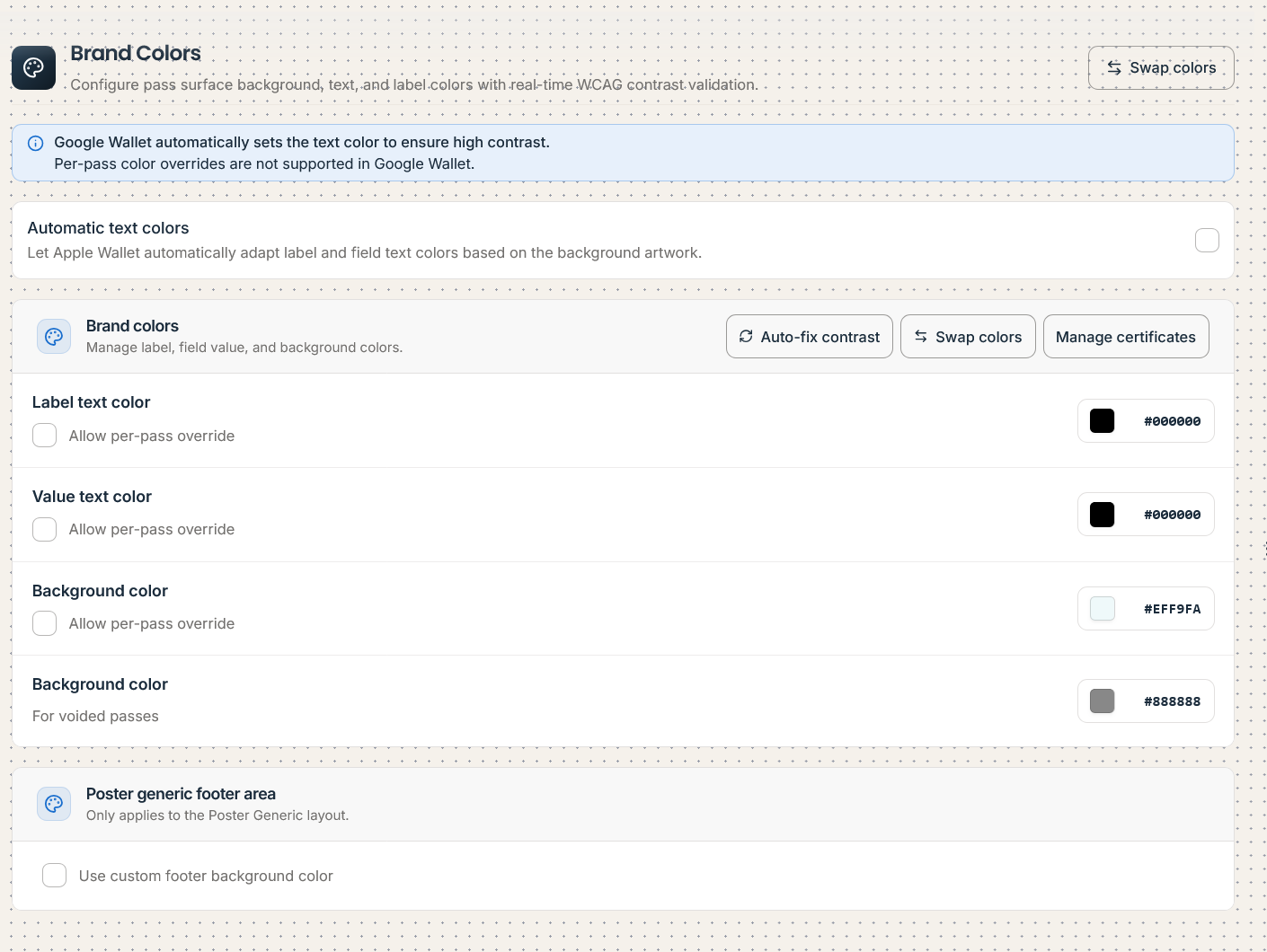
The Color model persists four semantic color properties:
-
backgroundColor: Main card body background. -
foregroundColor: Value text, member name, and primary numbers. -
labelColor: Field captions, section headers, and metadata labels. -
stripColor: Accent tint applied to strip image overlays.
Platform Serialization Rules
-
Apple Wallet (
rgb(r, g, b)): Apple'spass.jsonparser strictly mandates CSS RGB format (rgb(24, 24, 27)) and rejects hexadecimal strings (#18181B) or alpha channels (rgba). Passinstance automatically serializes RGB triplets when building.pkpassbundles. -
Google Wallet (
#RRGGBB): Google Wallet API resources mandate 6-character hexadecimal color strings. -
WCAG 2.1 AA Contrast Validation: The Visual Editor automatically calculates the luminance contrast ratio between
backgroundColorandforegroundColor/labelColor. If the contrast drops below the 4.5:1 ratio required for standard text, an inline warning is displayed in the issues drawer to prevent unreadable passes.
6. Supported Barcode Symbologies & Watch Fallbacks
Passinstance supports 11 barcode formats across retail, transit, and contactless ticketing:
| Barcode Format (barcode format) | Symbology Type | Native Apple Wallet | Native Google Wallet | Typical Use Case |
|---|---|---|---|---|
PKBarcodeFormatQR | 2D Matrix (Square) | Yes | Yes (QR_CODE) | Loyalty cards, smart PassFlow pages, camera scanners |
PKBarcodeFormatPDF417 | 2D Stacked Linear | Yes | Yes (PDF_417) | Airline boarding passes, transit tickets, state IDs |
PKBarcodeFormatAztec | 2D Matrix (Square) | Yes | Yes (AZTEC) | Rail tickets, European transit, high-density tickets |
PKBarcodeFormatCode128 | 1D Linear | Yes | Yes (CODE_128) | POS retail laser scanners, inventory member cards |
PKBarcodeFormatCode39 | 1D Linear | Fallback Required | Yes (CODE_39) | Industrial badges, automotive, legacy systems |
PKBarcodeFormatCodabar | 1D Linear | Fallback Required | Yes (CODABAR) | Libraries, blood banks, logistics parcels |
PKBarcodeFormatEAN13 | 1D Linear | Fallback Required | Yes (EAN_13) | Retail products, grocery coupons, UPC checkouts |
PKBarcodeFormatI2of5 | 1D Interleaved | Fallback Required | Yes (ITF / ITF_14) | Warehouse distribution, shipping cartons |
PKBarcodeFormatNone | None (Contactless) | No barcode | No barcode | NFC-only passes (nfcNoBarcode: true) |
Apple Watch Fallback Barcode Requirement
Because 1D linear barcodes (such as Code 128 or EAN-13) cannot be rendered legibly on small watchOS displays, Apple PassKit mandates a 2D fallback barcode (QR, PDF417, or Aztec). When you select a 1D format in Passinstance, the editor prompts you to assign an Apple Watch Fallback Format (defaults to PKBarcodeFormatQR).
Security Animation & Encodings
-
Security Animation (
addSecurityAnimation: true): Renders a dynamic, iridescent anti-screenshot shimmer across the barcode on iOS, proving the pass is active in Apple Wallet rather than a static screenshot. -
Character Encodings (
messageEncoding): Supported encodings includeiso-8859-1(Apple default),UTF-8,ISO-8859-15,Windows-1252, andShift_JIS.
7. Validity, Locations & Relevant Dates
GPS Geofencing (Location Model)
Attach up to 10 GPS coordinates per template. When a passholder approaches within range, iOS and Android automatically present the pass on the lock screen:
-
latitude: -90.0 to 90.0. -
longitude: -180.0 to 180.0. -
altitude: Optional altitude in meters. -
maxDistance: Search radius in meters (min100m, max10,000m, default1,000m). -
relevantText: Custom lockscreen message (e.g.,"Welcome to Artisan Roasters! Tap to scan your card.").
Bluetooth Low Energy iBeacons (Beacon Model)
Attach up to 10 iBeacons for fine-grained indoor proximity triggers at store entrances, cash registers, or event gates:
-
proximityUUID: 128-bit UUID string. -
major/minor: 16-bit integer sub-identifiers (0 to 65535). -
relevantText: Lockscreen notification message displayed when entering beacon range.
Relevant Dates (RelevantDates.tsx)
Configure up to 10 date intervals (startDate, endDate, or point-in-time date) to surface passes on the lock screen when an event or flight is imminent.
Expiration Strategies
-
none: The pass remains valid indefinitely. -
fixed: All passes expire at a fixed calendar date/time (expirationDate). -
duration: Dynamic expiration whereexpirationDate = issuanceDate + validityInDays.
8. Advanced Features & Functionalities
-
Sharing Prevention (
sharingProhibited: true): Disables the Apple Wallet share sheet, AirDrop forwarding, and pass exports on iOS. -
App Store Linkage (
associatedStoreIdentifiers): Provide numeric iTunes App Store identifiers (e.g.,[123456789]) to display an "Install App" or "Open App" banner on the back of the pass. -
NFC Contactless (Apple VAS & Google Smart Tap): Configure contactless tap-to-present payloads (
message,encryptionPublicKey,requiresAuthenticationwith Face ID / Touch ID, andnfcNoBarcode). Requires an active Apple VAS Certificate (type: TYPE_NFC). -
Welcome Notifications (
welcomeNotification): Dispatches a push greeting to the lock screen immediately after the passholder installs the pass.
9. Troubleshooting & Frequently Asked Questions
My template preview does not update after editing
If edits made in the Visual Editor are not visible in the simulator:
-
1
Check Preview Source Mode: In the top CommandBar, verify that the simulator toggle is set to Draft rather than Live. Live mode displays the canonical published base version, which does not reflect uncommitted draft edits.
-
2
Platform Switcher: Check whether you are viewing the Apple Wallet tab while modifying Google Wallet fields (or vice versa).
-
3
Conditional Visibility Mock Data: If a field has a
showWhencondition (e.g.,{tier} == "VIP"), the simulator hides the field if the mock attributes do not satisfy the condition. Open simulator settings to populate matching test data. -
4
Form Debounce: Complex color and layout inputs are debounced by 300ms. Click outside the input field or inspect the CommandBar autosave indicator.
My logo looks blurry on the download page
-
Root Cause: The public download page (
PassDownload.tsx) renders brand logos inside a container styled withmax-w-44 h-10(up to 176 CSS pt width). On modern Retina displays (@2x and @3x), this container requires 352 to 528 physical pixels for sharp rendering. Uploading a standard 1x logo (160x50 px) forces the browser to upscale the raster image over 300%, causing visible blurriness. -
Solution: Upload high-resolution assets at @3x resolution (PNG at least 480x150 px, or 660x660 px for square logos) in both Template Images (
logo) and Company Settings / Workspace Branding. Ensure the PNG is tightly cropped without unnecessary transparent borders.
How do I show the expiration date on the pass?
Apple Wallet uses metadata expirationDate for pass lifecycle management, but does not automatically print the date on the front card face. To display the expiration date visibly to passholders:
-
1
Navigate to Design & content -> Front layout (or Back content).
-
2
Click + Add field in Secondary or Auxiliary fields.
-
3
Set the Field Label to
EXPIRES(or localized text). -
4
Set the Field Value to
{expirationDate}(or dynamic attribute{expiresAt}). -
5
In field properties, select a Date Style:
- PKDateStyleShort (e.g., 12/31/26) - PKDateStyleMedium (e.g., Dec 31, 2026) - PKDateStyleLong (e.g., December 31, 2026)
-
6
Check
ignoresTimeZone: trueif the expiration date is universal across time zones.
API Reference: Template Operations
Create Template (request payload)
POST /api/v1/templates Headers: X-API-Key: <API_KEY> | Content-Type: application/json
{
  "name": "Artisan Coffee Club - Gold",
  "kind": "storeCard",
  "organizationName": "Artisan Roasters GmbH",
  "description": "Artisan Coffee Loyalty Card",
  "colors": {
    "backgroundColor": "rgb(20, 35, 28)",
    "foregroundColor": "rgb(255, 255, 255)",
    "labelColor": "rgb(167, 243, 208)",
    "stripColor": "rgb(255, 255, 255)"
  },
  "barcode": {
    "format": "PKBarcodeFormatQR",
    "messageEncoding": "UTF_8",
    "altText": "{cardNumber}",
    "addSecurityAnimation": true
  },
  "locations": [
    {
      "latitude": 52.520008,
      "longitude": 13.404954,
      "maxDistance": 150,
      "relevantText": "Welcome back to Artisan Roasters! Tap to scan your card."
    }
  ]
}
HTTP Response (201 Created)
{
  "success": true,
  "data": {
    "id": "tmpl_01hxyz987654321",
    "groupId": "grp_01hxyz987654321",
    "versionNumber": 1,
    "rowKind": "PRODUCTION",
    "status": "PUBLISHED",
    "name": "Artisan Coffee Club - Gold",
    "kind": "storeCard",
    "createdAt": "2026-11-16T20:50:00.000Z"
  },
  "statusCode": 201
}
Continue to Dynamic Fields & Personalization to bind custom properties to your layout, or learn about Template Versions & Publishing.