
01
Users miss the Add button on preview sheets
When customers open a pass link inside social in-app browsers, iOS Safari, or email previews, many close the sheet without tapping Add in the top-right corner — leaving the pass unsaved.
PassTour adds temporary, artwork-matched instruction overlays to newly issued Apple Wallet and Google Wallet passes — then automatically disappears once the holder completes their first action.
Guided Tour Overlay State
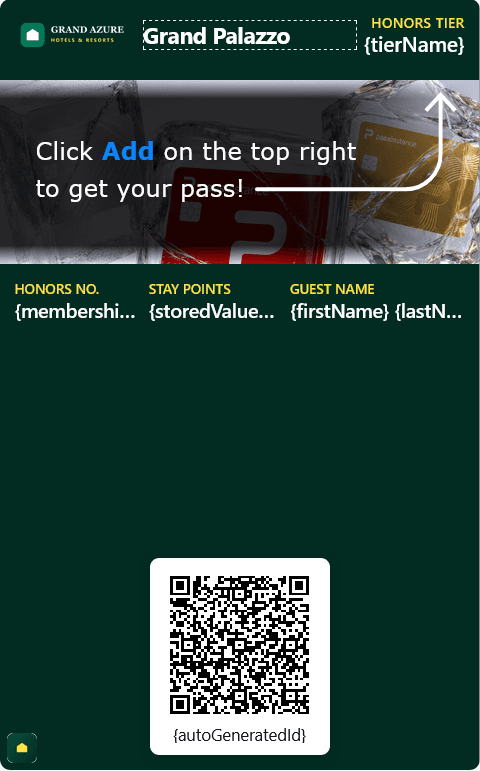
Click Add on the top right to get your pass!

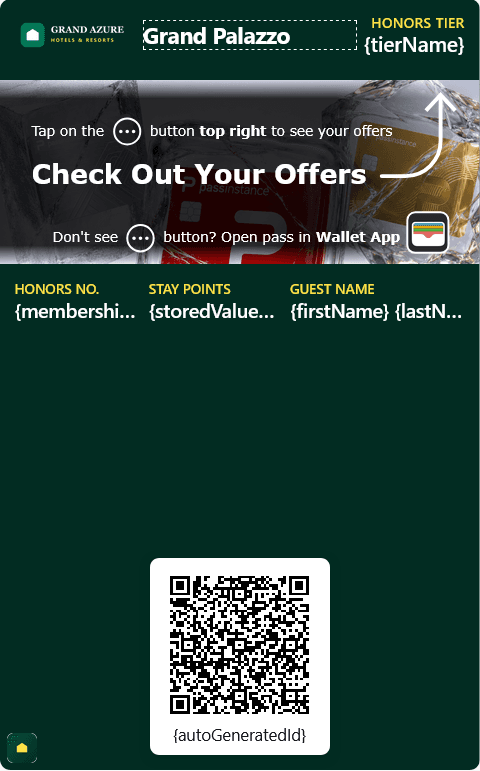
Don't see Add? Open the pass in Wallet App
Pre-install sheet on Apple Wallet — disappears automatically once saved
WHY PASSTOUR IS NEEDED
Native wallet viewers give new holders very subtle UI cues. Without contextual onboarding, users stall before tapping Add or never discover where offers and pass actions live.
When customers open a pass link inside social in-app browsers, iOS Safari, or email previews, many close the sheet without tapping Add in the top-right corner — leaving the pass unsaved.
Valuable pass actions — member perks, voucher links, full balances, and update terms — live inside Apple Wallet's (...) button or Google Wallet's (⋮) menu, where new wallet users rarely look.
Baking helper arrows into your permanent strip image forces loyal customers to look at onboarding callouts for months. PassTour only overlays artwork while guidance is still relevant.
STATE MACHINE LIFECYCLE
Each issued pass tracks its own tour state (PRE_INSTALL -> POST_INSTALL -> COMPLETED), reacting automatically to wallet registration and usage events.
Rendered exclusively on the Apple pre-install sheet before iOS saves the pass. Includes a top-right Add cue and a bottom fallback helper for restricted in-app browsers. Disappears once iOS confirms registration.
Activates automatically once Apple Wallet saves the pass or immediately for Google Wallet passes (which skip Stage 1). Points holders to Apple's (...) menu or Google's (⋮) menu using your selected preset.
When your chosen exit trigger fires, Passinstance marks the pass tour complete and pushes a live pass update — removing the temporary overlay so holders see your crisp original strip or hero image.
On stamp-card templates, rendered stamp artwork retains visual precedence so stamp progress stays readable; PassTour text guidance remains visible in the native Pass Details field (passinstance-tour-guide), alongside configurable accessibilityLabel copy for VoiceOver and TalkBack.
HOW TO USE PASSTOUR
Follow these six steps inside Template settings -> Guided tour, preview every state live, and push overlays without touching your base strip artwork.
In Passinstance Studio, open Template settings -> Guided tour on your template and switch on Enable PassTour.
Edit the Apple-only Headline, Top instruction line, and Bottom helper line — or upload an optional sanitized SVG overlay (up to 1 MB).
Choose Redeem in Pass Details, Scan in-store, or Check out offers — or write custom post-install copy and directional guidance.
Toggle Customize separate Google Wallet design to write vertical menu (⋮) copy or attach distinct artwork for Google Wallet holders.
Pick when the overlay clears automatically (first scan, first redemption, mechanic execution, timer, or manual) and add locale overrides.
Toggle Apple/Google, Base/Tour/Final layers, and Add to Wallet/Installed/Completed in Live Preview, then save, publish, or sync existing passes.
Step 1: Add to Wallet configuration & Apple Add sheet preview
Configure the pre-install Headline, Top instruction line, Bottom helper line, and preview 'Click Add on the top right to get your pass!' live before publishing.
EXIT TRIGGERS & CAPABILITIES
Choose any of five lifecycle exit conditions and pair them with Google Wallet overrides, custom SVG overlays, and live template sync.
FIRST_SUCCESSFUL_SCANAfter first successful scan
Automatically removes the tour overlay as soon as your staff or gate validates the pass for the first time with Passinstance Scanner.
FIRST_REDEMPTIONAfter first redemption
Ideal for coupons, gift cards, and points perks — keeps onboarding visible until the holder completes their first reward or balance redemption.
FIRST_MECHANIC_EXECUTIONAfter first mechanic execution
Completes the tour when the first dynamic pass mechanic runs (stamp added, points credited, tier upgraded, or dynamic field updated).
AFTER_DURATIONAfter configured duration
Counts down a configurable duration in seconds starting from confirmed wallet installation, then pushes the clean artwork update automatically.
NEVERKeep active until disabled
Pins the post-install guidance layer permanently on issued passes until you turn off PassTour or publish an updated template state.
AUTO_SYNCRe-Arm & Push Sync to Live Passes
Publishing updated onboarding tips? Optionally re-arm passes that already completed the tour, or run Sync to existing passes across Apple Wallet and Google Wallet.
Switch cleanly between Redeem in Pass Details, Scan in-store, and Check out offers with concise mobile character budgets ready for lock screens.
Enable Customize separate Google Wallet design when you want Google holders to see (⋮) vertical-menu instructions without altering Apple Wallet copy.
Need branded arrows or illustrated hints? Upload independent .svg files up to 1 MB for Step 1 Apple, Step 2 Apple, and Step 2 Google — sanitized server-side.
Publishing updated onboarding tips? Optionally re-arm passes that already completed the tour, or run Sync to existing passes across Apple Wallet and Google Wallet.
FAQ
No. Your base strip or hero artwork stays completely intact. PassTour renders the onboarding layer only while a pass is in Pre-Install or Post-Install, then pushes an update that restores your clean original artwork upon completion.
iOS displays an intermediate Add preview sheet before a pass is saved to Apple Wallet, so Step 1 directs users to tap Add. Google Wallet saves passes directly during the Google Wallet save flow, so those passes start directly in Step 2 (Installed).
Generated stamp grid artwork always takes visual precedence so customers can read their stamps clearly. Your PassTour guidance text still surfaces safely inside the native Pass Details field.
Yes. PassTour supports per-locale headline, instruction, and helper translations alongside explicit accessibilityLabel text and a native passinstance-tour-guide detail field fallback for assistive readers.
Turn on PassTour in Passinstance Studio so every new holder adds their pass, finds rewards faster, and ends with clean brand artwork.