
Overview
Creating your first wallet pass involves configuring a reusable visual Template, binding interactive business mechanics, performing a pre-publish risk check, and issuing a concrete Pass record that can be installed on iOS and Android devices.
Step-by-Step Creation Milestones
Follow this workflow in Passinstance Dashboard (Templates -> Create Template at /templates/new) or via the Developer API:
-
1
Select Layout Geometry (pass type): Choose one of the supported pass formats:
- storeCard: Loyalty cards, stamp cards, and gift cards. - coupon: Single-use promotional vouchers and discount tickets. - eventTicket / boardingPass: Concerts, sports, festivals, conferences, or airline/rail boarding passes. - membership / generic / posterGeneric / studentId / businessCard: Club cards, WWDC poster cards, employee/student IDs, and digital business cards.
-
2
Branding, Colors & Assets:
- Color Formatting: Apple Wallet strictly enforces rgb(r, g, b) strings (without alpha channels). Google Wallet accepts hex #RRGGBB. The dashboard color picker automatically converts and warns on low WCAG contrast. - Asset Slots (image asset slot): Upload high-resolution images across the 13 supported slots (logo, primaryLogo, secondaryLogo, icon, googlePayLogo, strip, background, thumbnail, artwork, venueMap, footer, androidBackground, androidLogo).
-
3
Attach an Interactive Pass Mechanic:
- Choose a rule engine (mechanic type): STAMP_CARD_ADD, STAMP_CARD_DEDUCT, LOYALTY_PROGRAM, PREPAID_CARD, VALID_ONCE_PER_DAY, or RENEW_EXPIRATION.
-
4
Define Dynamic Field Zones (field placement type):
- Place fields into HEADER, PRIMARY, SECONDARY, AUXILIARY, BACK, ADDITIONALINFO, or FOOTER. - Use dynamic curly tokens like {memberName}, {pointsBalance}, or {expirationDate}. - Add Apple changeMessage strings containing %@ (for example, "Points updated: %@") to trigger native iOS lock-screen push notifications.
-
5
Pre-Publish Risk Analysis & Publishing:
- The dashboard evaluates GET /api/v1/templates/:id/publish-risk-check to detect critical changes that could overwrite live pass fields. - Click Save & Publish (POST /api/v1/templates/:id/publish) to promote the DRAFT revision into the PRODUCTION base row.
-
6
Generate & Install a Test Pass:
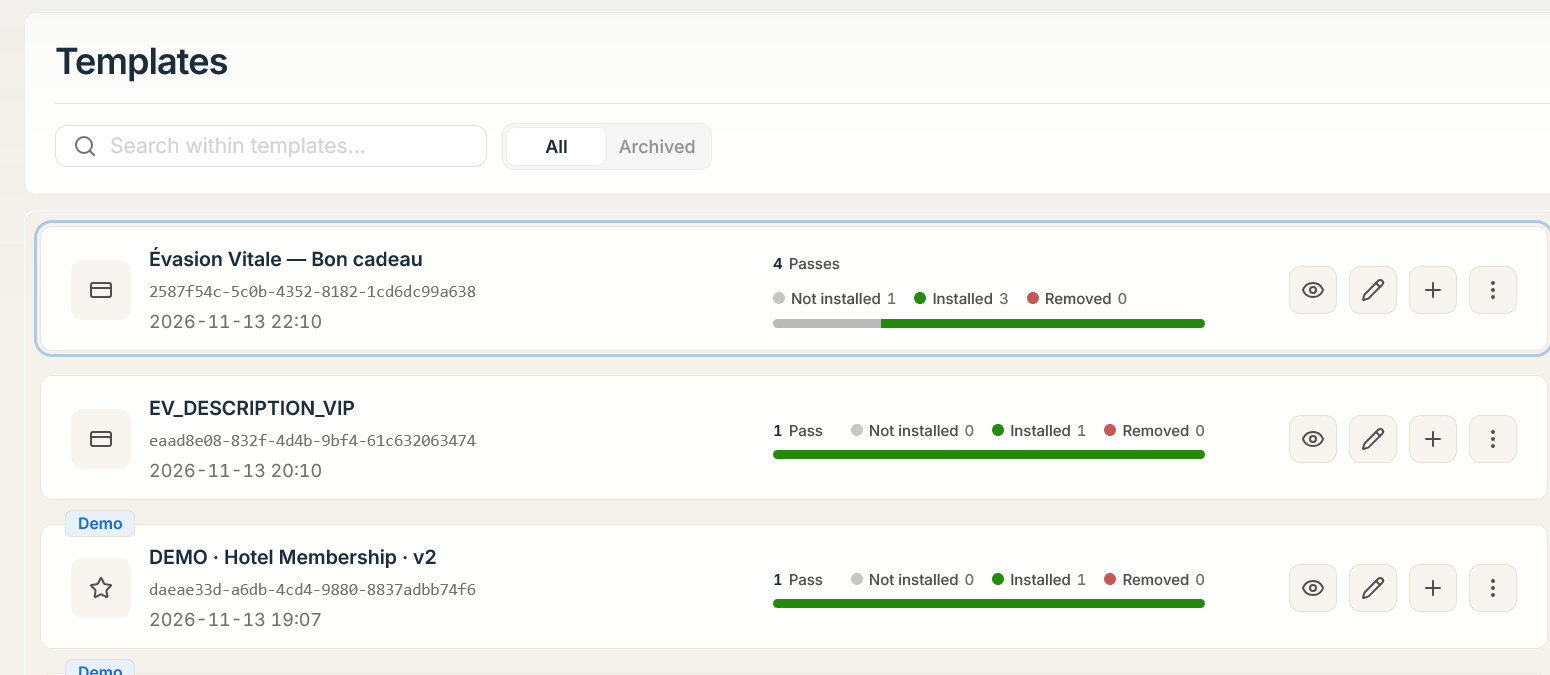
- Click Create Pass on the template overview (/templates/:id/overview) or dispatch a REST request to POST /api/v1/passes. Pass creation automatically calls resolvePassCreationTemplateId to bind the new pass to the canonical base template row.
Programmatic Pass Generation & Verification
Developers can bypass the dashboard and issue personalized wallet passes directly from backend systems or CRMs using POST /api/v1/passes (request payload). Include Idempotency-Key for safe retries and externalId for CRM correlation, and optionally pass ?includePassSource=apple|google to receive direct wallet source artifacts inline:
HTTP Request
/api/v1/passes?includePassSource=google
{
  "templateId": "tmpl_9a8b7c6d5e4f",
  "externalId": "cust_100248",
  "attributes": {
    "memberName": "Elena Rostova",
    "memberNumber": "MB-94021",
    "points": "150"
  },
  "barcodeValue": "PI-MB-94021-SECURE",
  "barcodeAltText": "MB-94021",
  "expirationDate": "2027-12-31 23:59"
}
HTTP Response (201 Created)
{
  "success": true,
  "data": {
    "id": "pass_1a2b3c4d5e6f",
    "templateId": "tmpl_9a8b7c6d5e4f",
    "serialNumber": "PI-789042-XY",
    "externalId": "cust_100248",
    "bundleId": null,
    "status": "ACTIVE",
    "lifecycleStatus": "ACTIVE",
    "walletVoidStatus": "NONE",
    "appleArtifactStatus": "NOT_GENERATED",
    "googleArtifactStatus": "READY",
    "downloadUrl": "https://app.passinstance.com/d/elena-rostova-94021",
    "passAccessUrl": "https://app.passinstance.com/p/pass_1a2b3c4d5e6f",
    "passSource": {
      "platform": "google",
      "saveUrl": "https://pay.google.com/gp/v/save/eyJhbGciOiJSUzI1NiIsInR5cCI6IkpXVCJ9..."
    },
    "createdAt": "2026-11-15T12:00:00Z"
  },
  "description": "Pass created successfully",
  "errors": [],
  "statusCode": 201
}
Sandbox Sample Pass Testing
During evaluation and initial testing, you can generate an instant sample pass without entering complete customer records:
-
1
Call
POST /api/v1/onboarding/sample-passor click Try Sample Pass in the/onboarding/try-passwizard step. -
2
The server creates an ephemeral pass and exposes the public sample endpoint:
/api/v1/onboarding/sample-pass/public/:sessionId
-
3
Scan the displayed QR code with an iPhone camera to trigger native Apple Wallet installation, or open the link on Android to test Google Wallet.
-
4
Open the Scanner (
/scanner) inPassinstance Dashboardor pair the Passinstance Scanner mobile app viaPOST /api/v1/scanner-keys/from-linkand scan the installed pass to test live scan events and instant push notifications.
Important: Always test your newly published pass on both iOS (Apple Wallet) and Android (Google Wallet) devices to verify color contrast, field text truncation, and barcode scan reliability before launching customer-facing distribution campaigns.
Ready to start? Launch Phase 2: Design Your Pass or explore Create Wallet Passes with AI.