
Overview
Before cashiers, gate attendants, or retail POS terminals can validate customer wallet passes, you must configure a Validation Place and bind a Scanner Configuration (ScannerConfiguration model) inside your workspace (/scanner and /scanner/configs in the Dashboard). Passinstance manages device pairing, operator PIN enforcement, key rotation, telemetry reporting, and offline snapshot synchronization through Scanner Keys API (/api/v1/scanner-keys), Validation Config API (/api/v1/validation), and Scan Validation API (/api/v1/scans).
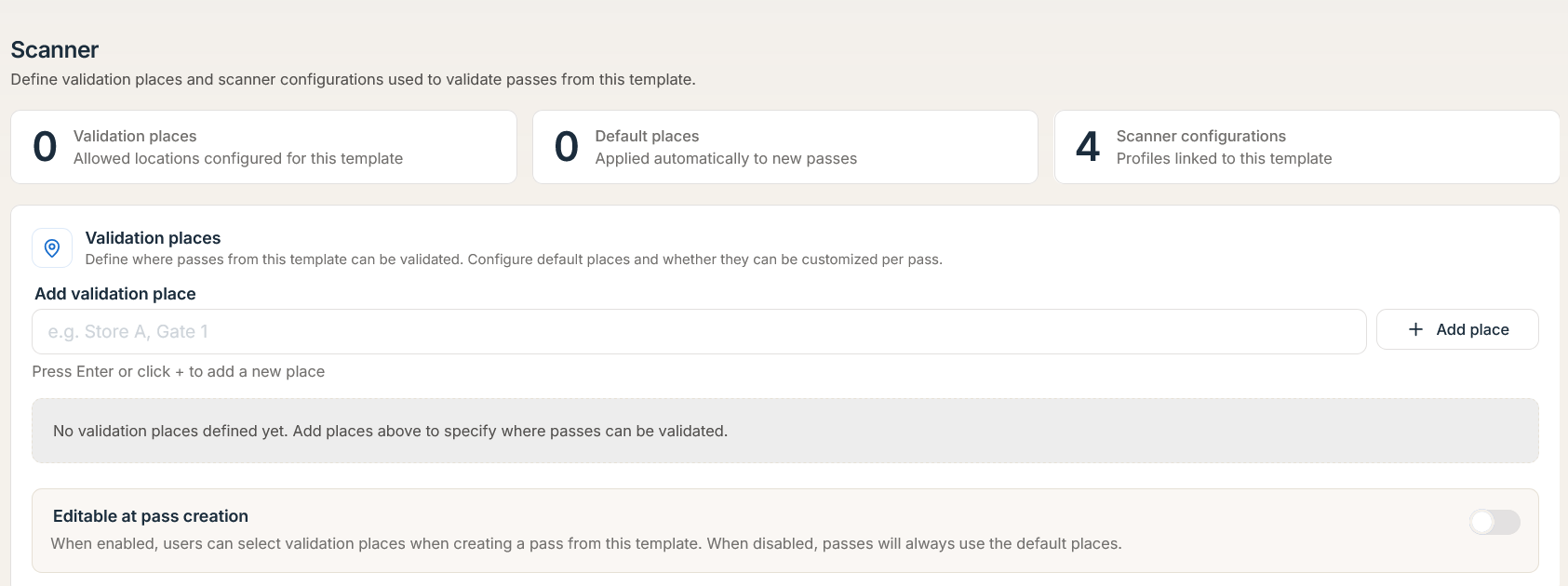
Prerequisites: You must have an active published Pass Template and workspace permissions to manage validation configurations (
validation:manage, orscans:readfor key provisioning) before generating pairing links or provisioning raw scanner keys.
Scanner Configuration Types & Core Enums
Passinstance separates native handheld scanning from public browser-based checkpoint links using ScannerConfigurationType:
Enum (ScannerConfigurationType) | Channel | Auth Mechanism | Typical Deployment |
|---|---|---|---|
SMART_SCAN_APP | Passinstance Scanner app (iOS / Android) & integrated POS SDKs | Paired x-scanner-key (from-link or for-config) | Gate check-in handhelds, offline venues, retail cash registers. |
VALIDATION_LINK | Web browser checkpoint (/api/v1/public/validation/:configId/validate) | Signed web validation link | Popup event desks or partner booths without app installation. |
Step-by-Step Setup
-
1
Define Validation Places: Create physical or logical checkpoints (e.g., Main Entrance, Register 1, VIP Lounge) to segment scan analytics and restrict which passes can be redeemed at each location (
validValidationPlaces). -
2
Create a Scanner Configuration: In Scanner -> Scanner Configurations (
/scanner/configs), define the profile name,type(ScannerConfigurationType), allowed templates (templateId/allowedTemplates),ScanMode,StoredValueOperation(NONE | ADD | SUBTRACT | SET),StoredValueAmountSource(FIXED | OPERATOR | MECHANIC), operator PIN (unlockPinHash), and whether staff can switch profiles in-flight (allowChangesViaLink: true). -
3
Pair the Device or Provision a Key:
- Mobile App (SMART_SCAN_APP): Scan a QR pairing link (ScannerAccessLink) or enter an access token to exchange it via POST /api/v1/scanner-keys/from-link. - Authenticated App / POS Terminal: After user login + profile selection, issue a dedicated key directly via POST /api/v1/scanner-keys/for-config.
-
4
Verify Heartbeat & Offline Sync: The scanner app verifies key health via
GET /api/v1/scanner-keys/verify, queues failed offline submissions up toMAX_RETRY_ATTEMPTS = 3with client-generatedx-idempotency-keyheaders, and caches pass snapshots viaGET /api/v1/scans/offline-dataset.
Architecture & Device Pairing Lifecycle
Scanner Key Lifecycle Endpoints (Scanner Keys API)
All device key provisioning, profile switching, PIN verification, and rotation operations are exposed under /api/v1/scanner-keys:
| Method | Endpoint | Auth / Guard | Description |
|---|---|---|---|
| POST | /api/v1/scanner-keys/from-link | Public (ScannerAccessLink, CSRF-exempt) | Exchanges { token, pin? } for a persistent x-scanner-key (key, returned once). |
| POST | /api/v1/scanner-keys/for-config | Workspace JWT (scans:read) | Issues a new scanner key for a tenant-owned { configId }. |
| GET | /api/v1/scanner-keys/configs | x-scanner-key | Lists active SMART_SCAN_APP configurations bound to the calling key's tenant. |
| POST | /api/v1/scanner-keys/switch | x-scanner-key | Switches the key to another { configId, pin? } when allowChangesViaLink: true. |
| POST | /api/v1/scanner-keys/unlock-pin | x-scanner-key | Verifies { pin } against unlockPinHash with automatic brute-force lockout protection. |
| GET | /api/v1/scanner-keys/verify | x-scanner-key | Validates key status, records device telemetry headers, and returns shouldRotate advisory. |
| POST | /api/v1/scanner-keys/revoke | x-scanner-key | Immediately revokes the calling scanner key, blocking all subsequent scan submissions. |
| POST | /api/v1/scanner-keys/:id/rotate | Workspace JWT (scans:read) | Atomically rotates an existing scanner key by ID and returns a new raw secret key once. |
1. Pairing via Access Link (POST /api/v1/scanner-keys/from-link)
When staff scan a setup QR code in the Passinstance Scanner app, the device exchanges the setup token (and optional operator PIN if unlockPinHash is configured) for a persistent x-scanner-key:
{
  "token": "sal_9f82b1c4e7a043d19b2e",
  "pin": "4829"
}
Response (201 Created):
{
  "scannerKey": {
    "id": "skey_01hxyz8912ab",
    "createdAt": "2026-11-16T09:00:00.000Z",
    "expiresAt": "2027-02-15T00:00:00.000Z"
  },
  "validationConfig": {
    "id": "scfg_main_entrance_01",
    "configurationId": "MAIN_ENTRANCE",
    "name": "Main Entrance Gate",
    "scanMode": "CHECK_IN",
    "type": "SMART_SCAN_APP",
    "place": "Main Entrance",
    "isActive": true,
    "allowChangesViaLink": true,
    "templateId": "tmpl_event_vip",
    "allowedTemplateIds": ["tmpl_event_vip"],
    "version": 3
  },
  "key": "sk_live_7d9a2f4b8c1e6039a5d2e8f1"
}
Important: The
keyvalue is returned only once at creation or rotation time and stored as a SHA-256 hash (hashKey) in the database. Storekeysecurely in the device keychain; if lost, invokePOST /api/v1/scanner-keys/:id/rotate.
2. Heartbeat, Telemetry & Rotation Advisory (GET /api/v1/scanner-keys/verify)
Scanner clients periodically call GET /api/v1/scanner-keys/verify with x-scanner-key and operational telemetry headers so administrators can monitor fleet health in real time:
| Telemetry Header | Format / Example | Purpose |
|---|---|---|
x-scanner-app-version | 2.4.1 (build 108) | Tracks app build version across deployed handhelds. |
x-scanner-device-id | ios-idfv-8841-992a | Unique hardware identifier for device fleet inventory. |
x-scanner-battery-level | 0.78 (0–1 or 0–100) | Alerts operations staff when gate scanners drop below 15% charge. |
x-scanner-queue-backlog | 12 | Number of offline scans queued locally awaiting upload sync. |
Response (200 OK):
{
  "valid": true,
  "scannerKeyId": "skey_01hxyz8912ab",
  "scannerConfigurationId": "scfg_main_entrance_01",
  "validationConfigId": "scfg_main_entrance_01",
  "expiresAt": "2026-11-25T12:00:00.000Z",
  "daysUntilExpiration": 9,
  "shouldRotate": true,
  "message": "Scanner key is approaching expiration. Please rotate soon."
}
When daysUntilExpiration < 15, shouldRotate evaluates to true, prompting the device or administrator to rotate the credential via POST /api/v1/scanner-keys/:id/rotate.
3. In-Flight Profile Switching (POST /api/v1/scanner-keys/switch)
If a configuration has allowChangesViaLink: true, staff can switch a single handheld scanner between different SMART_SCAN_APP profiles (for example, moving from Door Check-In to VIP Merchandise Redemption) without re-pairing:
{
  "configId": "scfg_vip_merch_02",
  "pin": "9012"
}
If the target configuration requires an operator PIN, the server validates pin against unlockPinHash before rebinding the key. Operators can also validate their PIN standalone via POST /api/v1/scanner-keys/unlock-pin.
Offline Dataset Synchronization (GET /api/v1/scans/offline-dataset)
For venues with intermittent cellular or Wi-Fi connectivity, mobile scanners synchronize a compact, key-scoped pass snapshot (offline scan dataset) via GET /api/v1/scans/offline-dataset.
Query Parameters
-
cursor(optional string): Pagination cursor returned by the previous page (nextCursor). -
limit(optional number): Maximum records per page. -
snapshotAt(optional ISO 8601 timestamp): Incremental delta sync timestamp to fetch only passes created, updated, or voided since the last snapshot.
Example Request & Snapshot Pass Item (IOfflineDatasetPassResponse)
/api/v1/scans/offline-dataset?limit=500&snapshotAt=2026-11-16T08:00:00.000Z
{
  "config": {
    "id": "scfg_main_entrance_01",
    "customerTimezone": "Europe/Berlin",
    "scanMode": "CHECK_IN",
    "validValidationPlaces": ["Main Entrance"]
  },
  "snapshotAt": "2026-11-16T09:00:00.000Z",
  "nextCursor": "pass_01hxyz9940",
  "hasMore": true,
  "items": [
    {
      "id": "pass_01hxyz9939",
      "templateId": "tmpl_event_vip",
      "serialNumber": "PI-VIP-00419",
      "externalId": "crm_attendee_9012",
      "barcodeValue": "PI-VIP-00419",
      "status": "ACTIVE",
      "voided": false,
      "expirationDate": "2026-12-31T23:59:59.000Z",
      "storedValue": "50.00",
      "mechanicType": "NONE",
      "lastSuccessfulScanAt": "2026-11-15T19:04:00.000Z",
      "validationPlaces": ["Main Entrance"]
    }
  ]
}
Explore hardware compatibility and validation workflows on the Scanner Product Page and Scan Modes & Validation Rules.